Consent Mode Integration
Map your cookie categories to Google Consent Mode v2 (Microsoft coming soon).
What is Consent Mode?
Consent Mode frameworks allow third-party platforms (Google, Microsoft, etc.) to adjust their behavior based on user consent status. Currently, we support Google Consent Mode v2, with Microsoft Consent Mode coming soon.
Available Consent Modes
Google Consent Mode v2: Available Now
Microsoft Consent Mode: Coming Soon
Conversion Modeling
Google fills data gaps with AI-powered conversion modeling
Privacy-First
Respects user choices while maintaining insights
Easy Integration
Works automatically with our consent solution
Google Consent Mode configuration
Screenshot placeholder
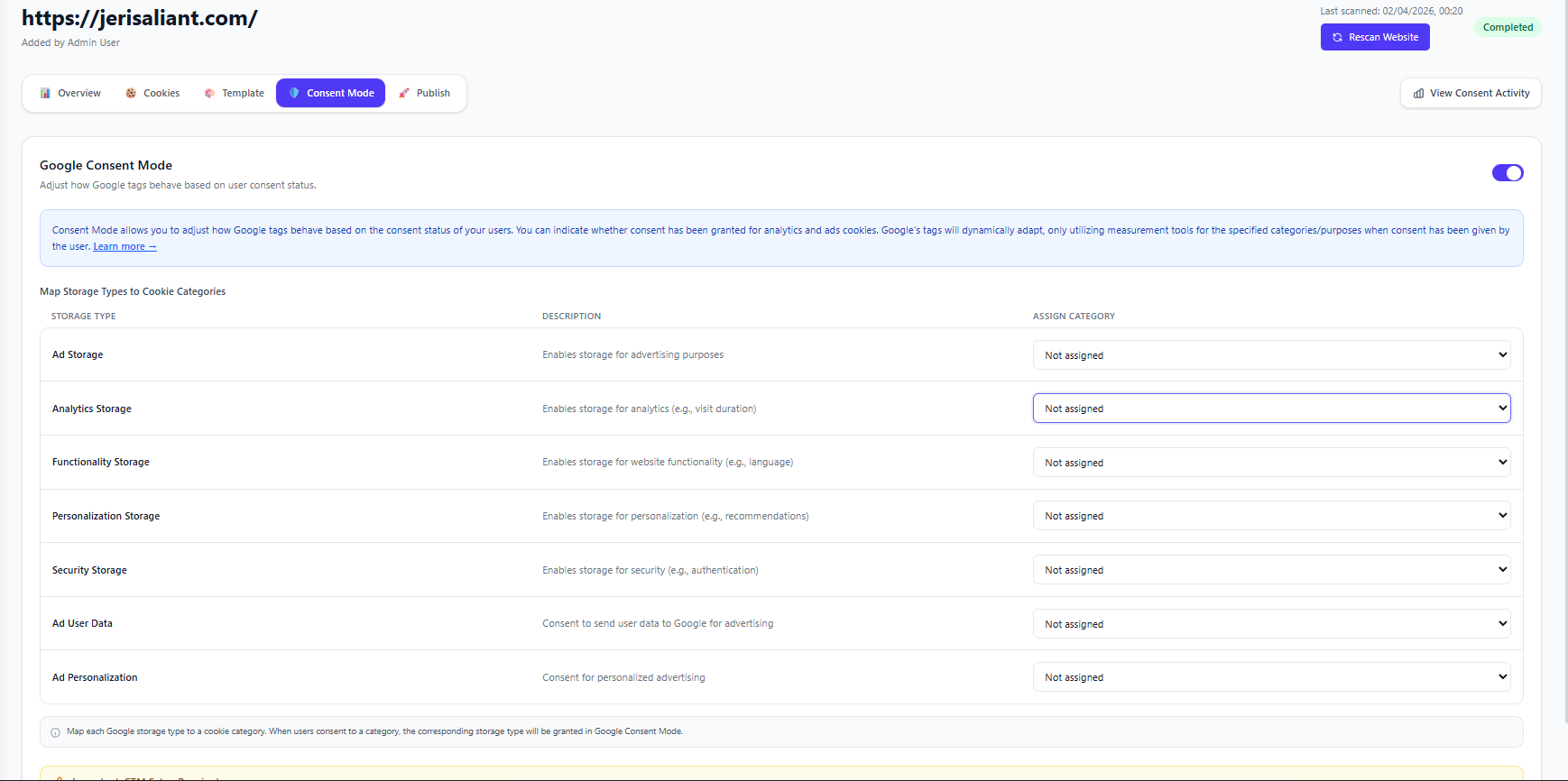
Google Storage Types
Google Consent Mode v2 uses storage types that need to be mapped to your cookie categories. Each storage type controls how Google tools behave based on consent:
| Storage Type | Description | Example Category |
|---|---|---|
| Ad Storage | Enables storage for advertising purposes | Marketing |
| Analytics Storage | Enables storage for analytics (e.g., visit duration) | Analytics |
| Functionality Storage | Enables storage for website functionality (e.g., language) | Preferences |
| Personalization Storage | Enables storage for personalization (e.g., recommendations) | Preferences |
| Security Storage | Enables storage for security (e.g., authentication) | Essential |
| Ad User Data | Consent to send user data to Google for advertising | Marketing |
| Ad Personalization | Consent for personalized advertising | Marketing |
Important: Examples Only - Not Legal Advice
The category mappings shown above are examples for illustration purposes only. We cannot provide legal advice on which categories to map for your specific use case. Please consult with your legal counsel to determine the appropriate category mappings that comply with applicable privacy regulations (GDPR, DPDPA, etc.) for your jurisdiction and business requirements.
Using Your Scanned Categories
During website scanning, cookies are automatically assigned to categories (Analytics, Marketing, Preferences, Essential). You'll map these categories to Google's storage types in the Consent Mode tab.
Configuring Google Consent Mode
Navigate to Consent Mode Tab
After scanning your website, go to the Consent Mode tab in your website dashboard.
Enable Google Consent Mode
Toggle on Google Consent Mode at the top of the page. This activates the integration.
Map Storage Types to Cookie Categories
For each Google storage type, assign it to the appropriate cookie category found during your scan:
Ad Storage
Enables storage for advertising purposes
Assign Category →
Marketing
Analytics Storage
Enables storage for analytics (e.g., visit duration)
Assign Category →
Analytics
Functionality Storage
Enables storage for website functionality (e.g., language)
Assign Category →
Preferences
Save Configuration
Once all storage types are mapped to your cookie categories, save the configuration. The consent signals will automatically update based on user choices.
Dropdown Shows Your Scanned Categories
When you click the "Assign Category" dropdown for each storage type, you'll see all the cookie categories detected during your website scan (Analytics, Marketing, Preferences, Essential). Simply select the appropriate match for each storage type.
Why Map Categories?
The mapping tells Google which storage types to grant based on your cookie category consent. For example, when a user accepts "Analytics" cookies, the "Analytics Storage" type will be granted to Google.
Category Mapping Examples
Disclaimer: These are examples only. Consult your legal team to determine appropriate mappings for your specific requirements.
Example Mappings
- •Ad Storage, Ad User Data, Ad Personalization → Marketing
- •Analytics Storage → Analytics
- •Functionality Storage, Personalization Storage → Preferences
- •Security Storage → Essential
What Happens After Mapping?
Once mapped, when a user accepts or rejects a cookie category through your banner, the corresponding Google storage types automatically receive the same consent status. This ensures Google's tools respect your users' privacy choices.
How It Works
Before User Consent
// Default state (denied) is sent to Google
gtag('consent', 'default', {
  'analytics_storage': 'denied',
  'ad_storage': 'denied',
  'ad_user_data': 'denied',
  'ad_personalization': 'denied',
  'functionality_storage': 'denied',
  'personalization_storage': 'denied',
  'security_storage': 'granted', // Essential always granted
  'wait_for_update': 500
});
After User Consents to Analytics & Marketing
// Consent update sent based on user category choices
gtag('consent', 'update', {
  'analytics_storage': 'granted',      // User accepted Analytics
  'ad_storage': 'granted',             // User accepted Marketing
  'ad_user_data': 'granted',           // User accepted Marketing
  'ad_personalization': 'granted'      // User accepted Marketing
});
Conversion Modeling Benefits
What is Conversion Modeling?
When users don't consent to cookies, Google uses machine learning to model conversions based on consenting users. This helps fill the data gap while respecting privacy.
- Maintain approximately 70-80% of your conversion data
- Keep Smart Bidding strategies effective for Google Ads
- Access audience insights in GA4 with modeled data
- Fully compliant with GDPR, DPDPA, and other regulations
Testing Your Implementation
Verify your Google Consent Mode implementation is working correctly:
- Open Chrome DevTools and go to the Console tab
- Type
dataLayerto view consent events - Look for "consent default" and "consent update" events
- Use Tag Assistant to verify Google tags respect consent
Google Tag Assistant
Install the Google Tag Assistant Chrome extension to verify your consent mode implementation is working correctly.